 Nova System Engineer • • 1,485 words • 8 min read
The HDR400 Myth: Why Your Monitor Isn't Showing Real HDR
Is HDR400 real HDR? Learn how nits, local dimming zones, Mini-LED and OLED differ, what DisplayHDR tiers mean, and how to pick a monitor that delivers.
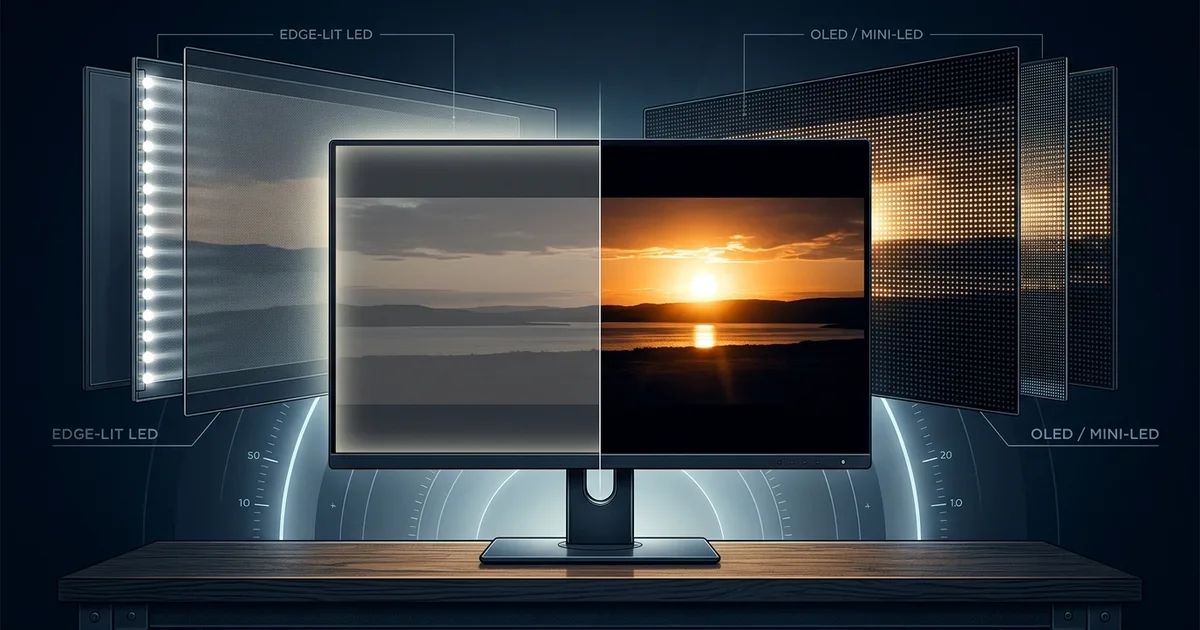
TL;DR (Direct Answer): HDR400 is a low entry-level certification. It asks for only 400 nits of brightness and does not require local dimming, which is the feature that keeps dark parts of the image dark. Without it, HDR content often looks grayer and flatter than normal SDR. Real HDR needs bright highlights and deep blacks on screen together, and that usually means full-array local dimming, Mini-LED, or OLED.
Why the HDR400 Sticker Can Mislead You
Imagine buying a car advertised with "Sports Mode," then finding that the button only turns the dashboard red. The engine stays the same. Many budget monitors sold with an "HDR400" label work the same way.
These monitors can accept an HDR signal, but they cannot display it properly. The result looks wrong. Dark horror games turn into a foggy gray, and movies look dim and washed out. In many cases, plain SDR (Standard Dynamic Range, the normal picture mode) looks better on the same screen.
Knowing this before you buy can save you a few hundred dollars. It can also save you from assuming HDR itself is overhyped, when the real problem is the monitor.
How HDR Actually Works
Think of a photo of a sunset. SDR is like a photo printed on matte paper. HDR is like looking out the window, where the sun is blinding and the shadows are deep at the same moment.
The signal
HDR video uses PQ, a brightness curve that describes exact light levels up to 10,000 nits. HDR10 is the most common HDR format. It combines PQ with 10-bit color, which gives over a billion shades and keeps gradients smooth. It also carries metadata, which is extra information that tells the screen how bright the content gets.
Nits and contrast
A nit is a unit of brightness. One nit is roughly the light of one candle spread over a square meter. Most SDR desktops sit around 100-250 nits. Contrast ratio compares the brightest white a screen can show with its darkest black. HDR needs a high contrast ratio, because bright highlights only look impressive when the blacks next to them stay dark.
Tone mapping
Movies are often mastered at 1,000-4,000 nits. Tone mapping is the monitor's way of squeezing that range into what its panel can physically show. When the panel has a weak range, the squeeze flattens everything into gray.
Comparing HDR Tiers and Panel Types
VESA, the industry group behind the DisplayHDR program, certifies monitors in tiers. DisplayHDR 400 requires a 400-nit peak and no local dimming. DisplayHDR 600 and 1000 require local dimming and higher peaks. True Black 400/500/600 tiers are designed for OLED screens, which can reach near-zero black levels.
Local dimming means the backlight is split into zones that can dim on their own. The more zones a screen has, the more precisely it can control light.
| Panel type | Peak brightness | Black level | Halos (blooming) | Burn-in risk | Price |
|---|---|---|---|---|---|
| Edge-lit, no dimming | Low (300-400) | Gray | Whole screen glows | None | Cheap |
| Full-array local dimming | Medium-high | Decent | Visible halos | None | Mid |
| Mini-LED (hundreds-thousands of zones) | Very high (1000+) | Very good | Small halos | None | Mid-high |
| OLED (per-pixel light) | Medium, dims on big bright scenes (ABL) | Perfect | None | Some | High |
ABL, or Automatic Brightness Limiter, dims an OLED when large areas of the screen are bright. This protects the panel from heat and wear.
Seeing the Difference: A Starfield Test
Here is how each type of screen handles white stars on a black sky:
Single zone       16 zones          1152-zone Mini-LED   OLED
░░░░░░░░░░░░      ░▒█▒░    ░▒█▒░    ·  *     ·    *      .  *     .    *
░░*░░░*░░░░░      ░▒▒▒░    ░▒▒▒░       ·  *     ·           .  *     .
░░░░░*░░░*░░      ░▒█▒░    ░▒█▒░    *    ·  *    ·      *    .  *    .
whole sky gray    halos round stars  tiny glow at most   pure black
This diagram shows how the backlight's precision decides whether black stays black.
Quick checks you can do
- Windows: Go to Settings, then System, then Display and turn on Use HDR. Then run Microsoft's free Windows HDR Calibration app.
- Peak brightness: Open Advanced display in Settings, or run
dxdiagand check the Display tab, to see the luminance your monitor reports. - macOS: Go to System Settings, then Displays and turn on High Dynamic Range.
- Test video: Play a dark starfield video in a dark room. If the whole sky glows gray, HDR will not look good on that screen.
Rule of thumb: if your monitor has no local dimming, leave HDR off and use SDR.
You can play with interactive display and light simulations in our Interactive Engineering Simulations.
Common Myths About HDR
- "HDR400 equals HDR." It only guarantees 400 nits of peak brightness. It does not require any dimming zones.
- "HDR10 support means good HDR." It only means the monitor can accept the signal. It says nothing about how well the monitor displays it.
- "Higher peak nits always wins." Peak brightness is often measured on a small patch covering 10% of the screen. Full-screen brightness can be far lower.
- "OLED can't do HDR because it's dim." Perfect blacks give OLED a contrast ratio that LCDs struggle to match, even when the LCD is brighter.
- "Turn HDR on for everything." The Windows desktop can look washed out in HDR mode. You need to adjust the SDR content brightness slider to fix it.
- "The HDMI cable decides HDR quality." Any certified cable with enough bandwidth works. The panel is what decides picture quality.
A Real-World Story
Alex bought a 27-inch "HDR Gaming" monitor on sale. He turned on HDR and launched a dark horror game. The corridors became a flat gray haze, and his flashlight beam barely stood out.
The spec sheet explained why. The monitor was edge-lit, had zero dimming zones, and measured a real peak of about 350 nits. When Alex switched back to SDR, the picture looked richer.
Later he moved to a Mini-LED monitor with over a thousand zones. That same flashlight beam punched through true darkness. The spec lines that would have warned him earlier were "local dimming: none," "edge-lit," and a "typical" brightness rating far below the advertised peak.
Curious how AI can help you decode spec sheets? Try our AI Playground.
Frequently Asked Questions (FAQ)
Is DisplayHDR 400 completely useless?
Not completely. HDR400 monitors usually accept 10-bit HDR signals and can show slightly brighter highlights than basic SDR panels. Some games with good tone mapping may look acceptable. Without local dimming, though, these monitors cannot deliver real contrast, so dark scenes often look gray and flat. Treat HDR400 as a minor bonus feature, not a reason to buy. If your main goal is HDR, look for local dimming or an OLED panel instead.
How many local dimming zones are enough for HDR?
More zones mean more precise light control and smaller halos around bright objects. A few dozen zones help a little, but blooming will still be obvious in dark scenes. Around 500 zones gives a solid HDR experience on a 27-inch monitor. Mini-LED monitors with 1,000 or more zones look excellent. OLED avoids the zone question entirely, because every pixel produces its own light, which gives perfect blacks and no halos at all.
Will OLED burn in if I use it as a work monitor?
Burn-in is possible but less common than it used to be. Static elements like taskbars, toolbars, and logos shown for many hours a day carry the most risk. Modern OLEDs include pixel shifting, automatic refresh cycles, and burn-in warranties. You can lower the risk further by hiding the taskbar, using dark mode, and enabling a screensaver. For all-day spreadsheet work, Mini-LED is the safer choice.
Why does HDR look washed out in Windows and how do I fix it?
Windows maps normal SDR content into HDR space, and that can make the desktop look dull or gray. First, open Display settings and adjust the SDR content brightness slider until the desktop looks normal. Next, run the Windows HDR Calibration app to set correct black and peak levels. If the monitor has no local dimming, turn HDR off for desktop work. Only enable it for games or movies.
Is HDR worth it on a laptop or for Netflix on PC?
It depends on the screen. Laptops with OLED or Mini-LED panels, like many recent premium models, can show impressive HDR. Basic laptop IPS screens usually cannot. Netflix HDR on PC also needs a supported browser or app, a compatible GPU, and the right subscription plan. When all of those pieces are in place, HDR movies look stunning. Without proper hardware, SDR often looks better.