 Echo Support / SRE • • 1,483 words • 8 min read
Build a Ransomware-Proof Backup Shield at Home Today
Protect photos and documents from ransomware with a practical 3-2-1 backup plan, offline drive, cloud copy, and simple restore tests at home.
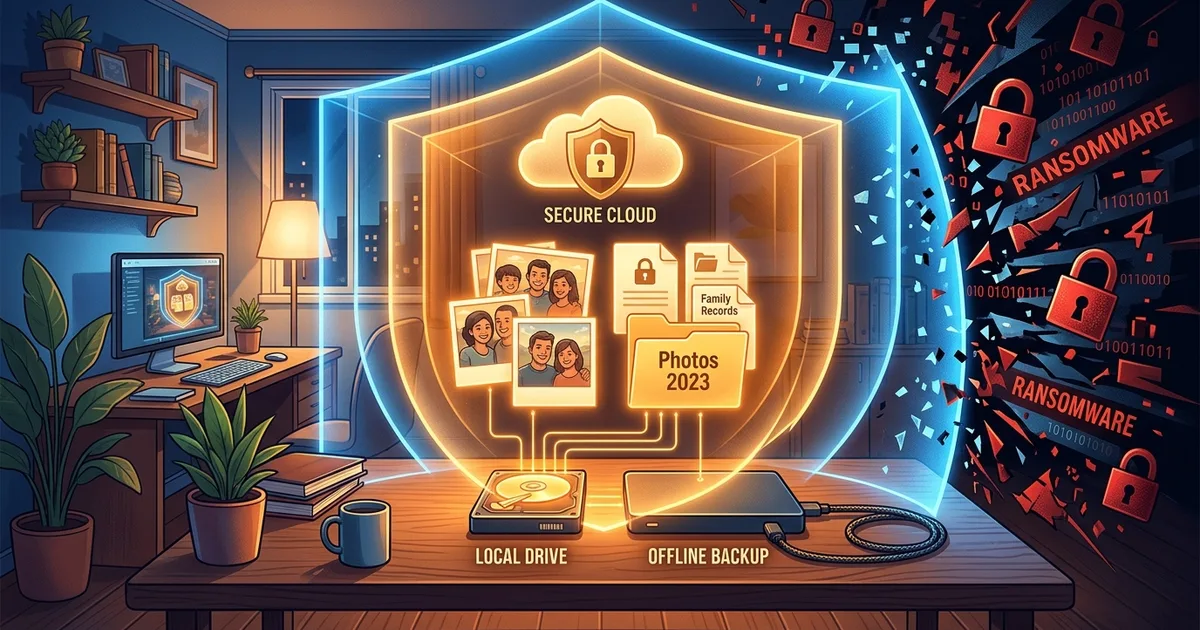
TL;DR (Direct Answer): A ransomware-proof home backup shield keeps several copies of important files in different places, including one copy disconnected from your devices. Use an automatic cloud backup, a regularly updated external drive, and a simple restore test. This protects family photos, tax records, and schoolwork even when a malicious program locks your computer.
Why One Copy Is Not a Backup
Keeping your only copy of a file on your computer is like leaving your house’s only key in the lock. It is convenient, but one theft, fire, broken drive, or ransomware attack can take everything at once.
Ransomware is malicious software that locks or encrypts files and demands money for their release. It can affect ordinary home users, not just large companies. A single infected email attachment or fake software update may be enough to put years of photos and documents at risk.
Your backup shield protects the files that would be painful or impossible to replace:
- Family photos and videos
- Tax and insurance documents
- School projects and certificates
- Personal writing and creative work
- Password recovery codes and important records
Think of backups as spare keys stored with trusted people. The goal is not to prevent every break-in. The goal is to make the break-in survivable.
For more practical digital safety ideas, explore the AI Playground, where complex technology becomes easier to understand.
Build the 3-2-1 Backup Shield
The 3-2-1 rule is a simple safety recipe: keep three copies of your data, on two different types of storage, with one copy offline or in another location.
Here is what that means at home:
- Three copies: Keep the original on your computer plus two backups.
- Two media types: Use different storage methods, such as an external USB drive and cloud storage.
- One separate copy: Keep at least one copy disconnected from the computer or stored away from home.
Cloud storage means your files are kept on a provider’s internet-connected servers. An external USB drive is a small storage device that plugs into your computer.
Start by choosing important folders rather than trying to understand every file on your machine. Create a clear structure such as:
Important Files/
├── Photos/
├── Tax and Insurance/
├── School/
└── Personal Documents/
Set cloud backup to run automatically each day. Once a week, copy the same folders to an external drive. When the copy finishes, safely eject the drive and unplug it. That final step matters because ransomware can attack a drive that remains connected.
You can also learn how systems behave under failure through Interactive Engineering Simulations. The same survival principle applies: assume something will break, then prepare a recovery path.
Compare Your Backup Options
Different backup tools solve different problems. Most households benefit from combining two rather than searching for one perfect solution.
| Option | Main strengths | Main weaknesses | Ransomware and theft risk |
|---|---|---|---|
| External USB drive | Affordable, fast, works without internet | Must be connected and managed | Low when unplugged; vulnerable while connected |
| Cloud backup | Automatic, off-site, easy version recovery | Monthly cost and internet dependence | Often good, especially with version history |
| NAS | Central home storage for several devices | More expensive and complex | Still vulnerable if always connected |
| Second off-site copy | Protects against fire and theft | Requires another location or service | Strong physical protection |
A NAS, or network-attached storage, is a storage box connected to your home network. It can be useful for families, but it is not automatically safe. If ransomware can access the NAS, it may encrypt the files stored there too.
Cloud backup is convenient because it can keep older versions of files. This is called version history: a record of previous file states that lets you recover an earlier, clean copy.
An off-site copy could live at a trusted relative’s home, in a bank safe-deposit service, or with a separate cloud provider. The best choice depends on your budget and comfort level. A simple external drive plus reputable cloud backup is enough for many households.
A Practical Home Plan
Imagine a family computer containing five years of photos and several years of tax documents. Their plan can be simple:
- The computer’s important folders are copied automatically to a cloud backup service.
- Every Sunday, the family connects an external USB drive.
- The drive receives a fresh copy of the important folders.
- After the copy is checked, the drive is ejected and stored in a drawer.
- Every few months, the drive is moved to a trusted off-site location.
This arrangement gives them three useful copies: the computer, the cloud version, and the external drive. The cloud copy is separate from the home, while the USB drive is normally offline.
Do not make the weekly process depend on memory alone. Put a repeating reminder on your calendar. Choose a day when the computer is usually available, and keep a short checklist nearby: connect, copy, check, eject, store.
If your backup service supports it, enable multi-factor authentication. This means signing in with a password plus a second proof, such as a code from your phone. It protects the cloud account if your password is stolen.
Mistakes That Create False Confidence
Synchronization is not the same as backup. Synchronization makes two locations match, so an accidentally deleted or encrypted file may be copied as a problem to both places. A real backup should offer older versions or a separate recovery copy.
A connected external drive is not truly protected. If ransomware can see it, the malware may encrypt it. Unplug the drive after each backup.
RAID is not a backup either. RAID, or redundant array of independent disks, keeps data available when one drive fails. It may protect against hardware failure, but not against deletion, ransomware, fire, or theft.
Also, never assume a backup works because an app says “complete.” Open several files from the backup. Check an old photo, a document, and a video. At least twice a year, restore copies into a temporary folder and confirm that they open normally.
In a real-world scenario, one home user lost access to the files on a laptop after ransomware encrypted them. The attack looked disastrous, but the user had removed the external drive after the previous weekly backup. Their cloud service also kept clean version history. They wiped the infected computer, restored recent documents from the cloud, and recovered older photos from the drive within minutes. The backup did not stop the attack. It stopped the attack from becoming a catastrophe.
Frequently Asked Questions (FAQ)
How often should backups run?
Back up as often as the data changes. Automatic cloud backup should usually run continuously or daily for active folders. Make an external-drive copy weekly for ordinary household files. If you are editing important work every day, use a daily schedule. The key question is how much recent work you could recreate without serious stress. If losing one week would hurt, do not wait a week between backups.
Can I leave my external drive connected all the time?
You can, but it weakens your protection. A connected drive is visible to ransomware, accidental deletion, and some hardware problems. Use it for the backup, verify that the copy completed, then eject and unplug it. If you need a continuously available drive, treat it as a convenience copy, not your only backup. Keep another copy offline or in the cloud with version history.
Is cloud backup safe?
Cloud backup is often safer than keeping every copy at home, but no service is risk-free. Choose a reputable provider with encryption, account alerts, multi-factor authentication, and version history. Use a unique password and protect your email account too, since email is often used to reset passwords. Cloud storage can fail through account takeover or mistaken deletion, so combine it with an offline copy.
How can I verify old photos and documents?
Verification means opening files and confirming that they are complete, not merely checking that file names exist. Choose samples from different years and folders. Open a few photos, a PDF, a spreadsheet, and a video if you have them. Compare important files with the originals when possible. Every few months, inspect a different group. This catches silent damage before you urgently need the files.
How do I test restoring from a backup?
Create a temporary folder on your computer and restore several files into it. Select different file types and dates, including an older version if your service supports history. Open each file and confirm that it looks correct. For a larger test, restore the files to another computer or a clean external drive. A successful restore test proves your backup can become useful data, not just storage.